BigQuery MCP — Setup Guide
Connect Claude to BigQuery using your Hello Sugar service account key.
👋 Welcome — start here
This is a big step for us: for the first time, you have direct access to your own data through Claude. Just ask a question in plain English and get the answer back in seconds — like having an analyst on call for those quick questions. We're not going anywhere; we're still here for the deeper, custom work. This simply puts the fast answers directly in your hands.
Dashboards first, Claude for the rest
For the everyday numbers that are already on your dashboards, keep using the dashboards. We've built them in a highly optimized way, so they're faster and they keep our costs down.
Where Claude shines is the stuff a dashboard doesn't show you the way you want it — for example, comparing one location against the company average, or a chart in a format we haven't built. That's exactly what this is for.
A quick note on accuracy
The queries, numbers, and calculations behind your dashboards are reviewed and verified, so they're your most reliable source of truth. Claude is powerful, but like any AI it can occasionally get something wrong — and the quality of its answers depends a lot on how you ask. So don't hesitate to use it; just sanity-check anything important before you act on it.
The best way to get good at it is to start using it. The clearer your question, the better the answer — and we'll all learn what works as we go.
Ready? Pick your platform from the tabs above — macOS or Windows — and follow the steps.
✅ Install Claude Desktop + BigQuery MCP (Windows)
Watch the setup video (Windows) — link coming soon
- Open PowerShell (press the Windows key, type PowerShell, press Enter).
- Copy each command below, paste it into PowerShell (right-click pastes), and press Enter.
- Wait for each command to finish before running the next one.
- Run the steps in order, from top to bottom.
1️⃣ Install Google Cloud SDK
Run in PowerShell:
(New-Object Net.WebClient).DownloadFile("https://dl.google.com/dl/cloudsdk/channels/rapid/GoogleCloudSDKInstaller.exe", "$env:Temp\GoogleCloudSDKInstaller.exe")
& $env:Temp\GoogleCloudSDKInstaller.exe
Wait for the installer GUI to finish, then open a new PowerShell window before continuing.
2️⃣ Allow PowerShell to run gcloud scripts
Type Y when prompted.
Set-ExecutionPolicy -Scope CurrentUser -ExecutionPolicy RemoteSigned3️⃣ Verify and authenticate
gcloud --version
gcloud auth application-default login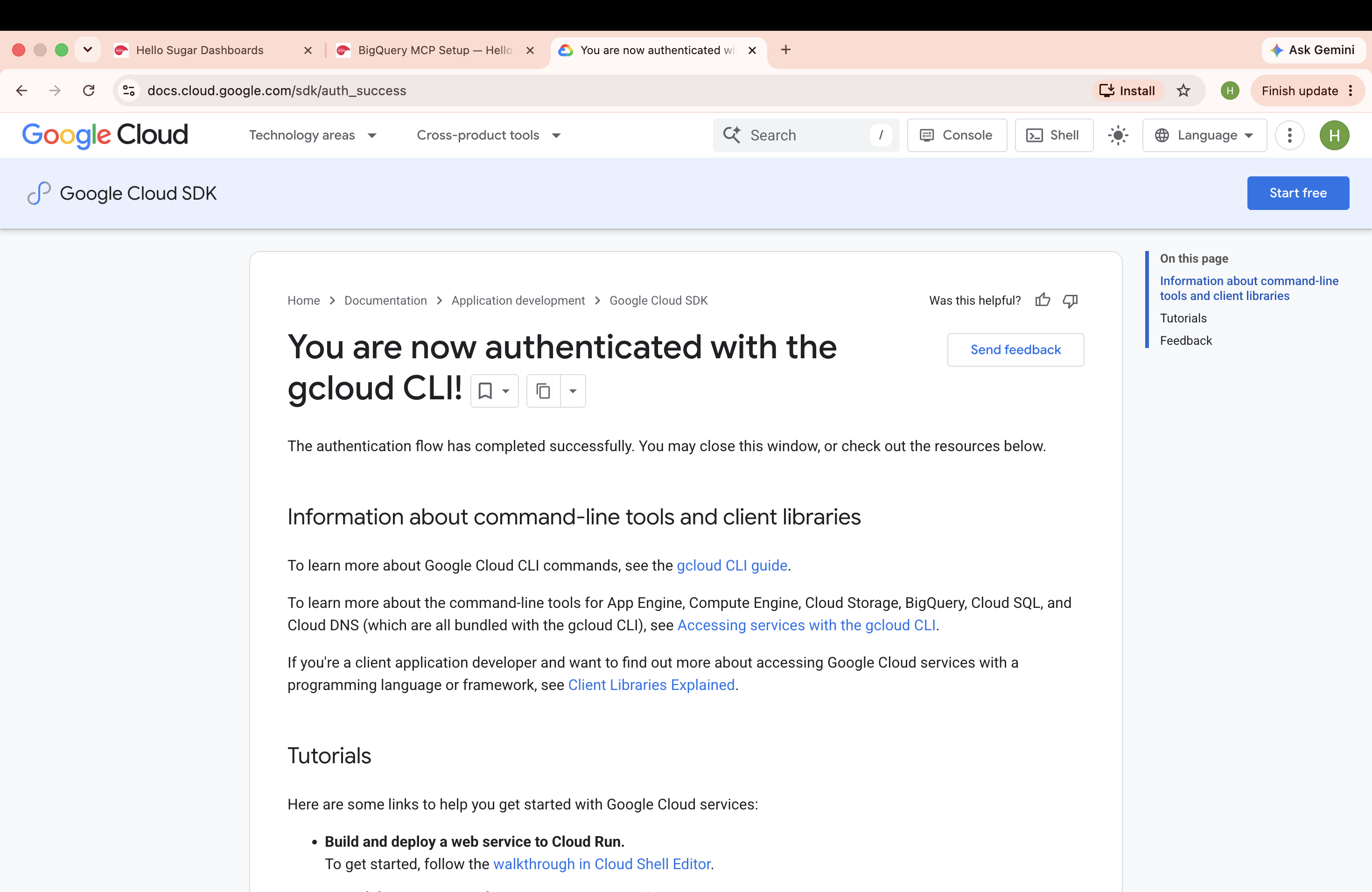
4️⃣ Download the BigQuery toolbox
mkdir $HOME\bigquery-mcp
cd $HOME\bigquery-mcp
$ProgressPreference = 'SilentlyContinue'
Invoke-WebRequest -Uri "https://storage.googleapis.com/genai-toolbox/v0.26.0/windows/amd64/toolbox.exe" -OutFile "toolbox.exe"
.\toolbox.exe --version
5️⃣ Install Claude Desktop
Download from https://claude.ai/download, run the installer, and sign in.
6️⃣ Configure the MCP server in Claude Desktop
- Click the Settings gear (top-right or via menu).
- Go to Developer (or Extensions / MCP Servers, depending on version).
- Click Edit Config or Add MCP Server.
- This opens
claude_desktop_config.jsonin your default editor (Notepad) with the right path.
Click into the Notepad window (don't paste into PowerShell). Paste the JSON below — or, if the file already has content, add the "bigquery" entry inside the existing "mcpServers" block. Replace <your-username> with your Windows username, save with Ctrl+S, and close:
{
  "mcpServers": {
    "bigquery": {
      "command": "C:\\Users\\<your-username>\\bigquery-mcp\\toolbox.exe",
      "args": ["--prebuilt", "bigquery", "--stdio"],
      "env": {
        "BIGQUERY_PROJECT": "even-affinity-388602"
      }
    }
  }
}
7️⃣ Restart Claude Desktop
Quit from the system tray: right-click the Claude icon → Quit, then reopen it from the Start menu. If it won't restart cleanly, force-quit in PowerShell:
Get-Process Claude -ErrorAction SilentlyContinue | Stop-Process -Force
Get-Process toolbox -ErrorAction SilentlyContinue | Stop-Process -Force
Get-Process | Where-Object {$_.ProcessName -match "Claude|toolbox"}
The last line lists any survivors — empty output means both are stopped. Then reopen Claude Desktop and the BigQuery MCP server will be available.
✅ Install Claude Desktop + BigQuery MCP (macOS)
Watch the setup video (macOS) — link coming soon
- Open Terminal (
⌘ + Space, type Terminal, press Enter). - Copy each command below, paste it into Terminal, and press Enter.
- Wait for each command to finish before running the next one.
- Run the steps in order, from top to bottom.
1️⃣ Install Google Cloud SDK
If you don't have Homebrew yet, install it first:
/bin/bash -c "$(curl -fsSL https://raw.githubusercontent.com/Homebrew/install/HEAD/install.sh)"Then install the SDK:
brew install --cask google-cloud-sdk2️⃣ Verify and authenticate
gcloud --version
gcloud auth application-default login3️⃣ Download the BigQuery toolbox
mkdir -p ~/bigquery-mcp && cd ~/bigquery-mcp
export VERSION="0.26.0"
curl -L -o toolbox "https://storage.googleapis.com/genai-toolbox/v$VERSION/darwin/arm64/toolbox"
chmod +x toolbox
./toolbox --version
4️⃣ Install Claude Desktop
Download from https://claude.ai/download, run the installer, and sign in.
5️⃣ Configure the MCP server in Claude Desktop
- Click the Settings gear (top-right or via menu).
- Go to Developer (or Extensions / MCP Servers, depending on version).
- Click Edit Config or Add MCP Server.
- This opens
claude_desktop_config.jsonin your default editor (typically TextEdit) with the right path.
Paste the JSON below, replace <your-username> with your macOS username, save with ⌘+S, and close:
{
  "mcpServers": {
    "bigquery": {
      "command": "/Users/<your-username>/bigquery-mcp/toolbox",
      "args": ["--prebuilt", "bigquery", "--stdio"],
      "env": {
        "BIGQUERY_PROJECT": "even-affinity-388602"
      }
    }
  }
}
6️⃣ Restart Claude Desktop
Quit Claude Desktop (⌘+Q) and reopen it — the BigQuery MCP server will be available.
If Claude won't restart cleanly, force-quit from Terminal:
killall Claude 2>/dev/null
killall toolbox 2>/dev/null
pgrep -lf "Claude|toolbox"
The last line lists any survivors — empty output means both are fully stopped, then reopen Claude Desktop.
❓ FAQ & Troubleshooting
“Authentication failed”?
Your Google Cloud sign-in can expire — when it does, the MCP reports an authentication failure. Re-run these in your terminal (Terminal on macOS, PowerShell on Windows), then sign in when the browser opens and close that tab:
gcloud --version
gcloud auth application-default login
That fixes it almost every time. If it still doesn’t work, raise it using the Report Issue button.
Claude is returning stale or cached data?
Just tell it: “Do a fresh query and do not use cache.”
🚀 Head-start prompt (paste this first)
Once your MCP / connector is set up, start a new Claude chat with this prompt so it learns our data model before answering — then ask your question.
Before answering my questions, learn our data model from the Superset query catalog.

Read even-affinity-388602.superset_query_catalog.datasets_for_mcp. Each row is a Superset dataset; the sql column is the actual query powering a chart. These queries are your source of truth for which views/tables to use, how they join, and which columns matter - study them to understand the relationships.
Read even-affinity-388602.superset_query_catalog.table_and_views_for_mcp - this is the allow-list of objects you may query (project_id, dataset_name, table_or_view_name). Only query objects listed here.
Prefer aggregated views over raw row-level tables wherever one exists (e.g. an _agg_ view rather than reconstructing the aggregation yourself). Reach for raw views only when the aggregated one can't answer the question.
If any table or view throws an error (access denied, not found, etc.), skip it and keep going - never stop or fail the whole task because one object is unreadable.
Do not print your understanding, summaries, schemas, or row dumps into the chat while exploring. Build the picture silently, then use it to answer my actual question concisely.
Once you've absorbed the catalog, wait for my question.